Filtra candidatos con +300 pruebas psicométricas y técnicas
Descarta hasta el 80% de los candidatos no aptos antes de la primera entrevista.

Empresas que confían en Evalart para evaluar talento







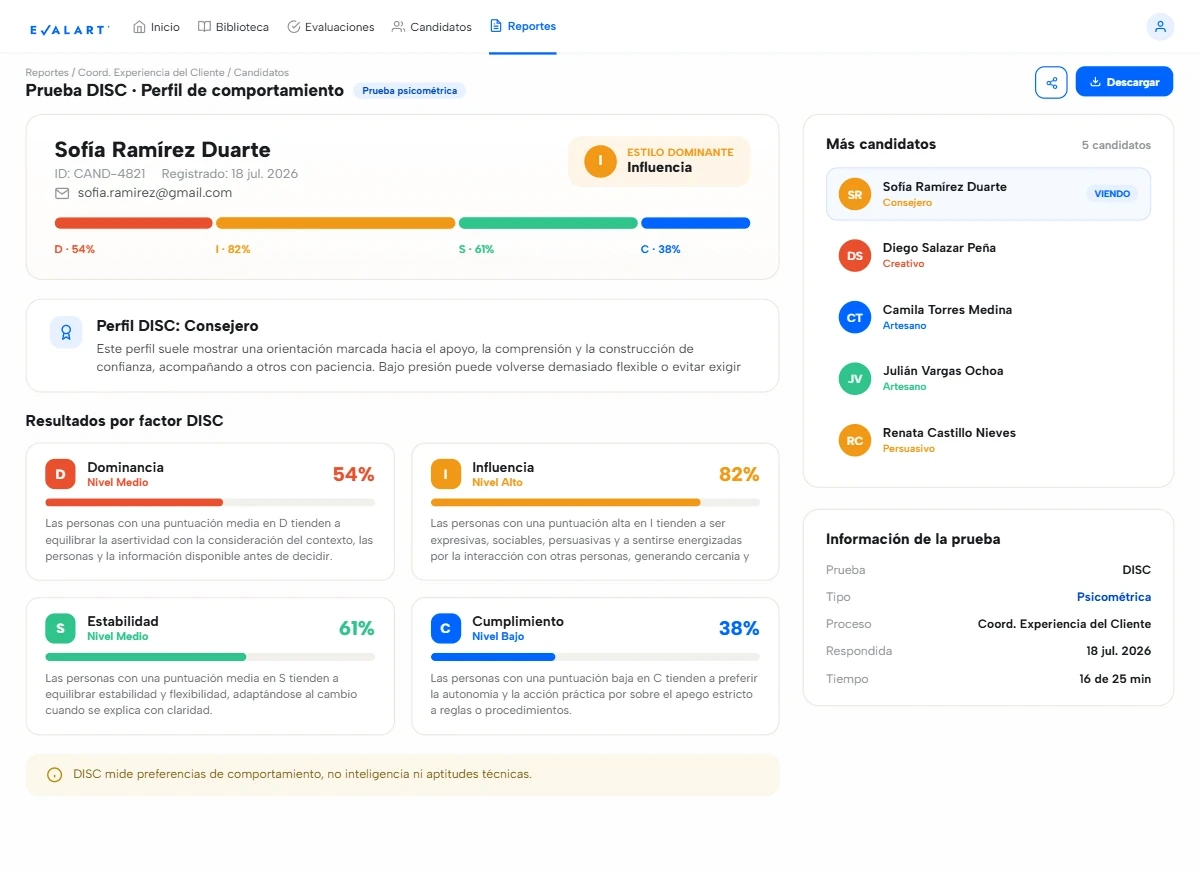
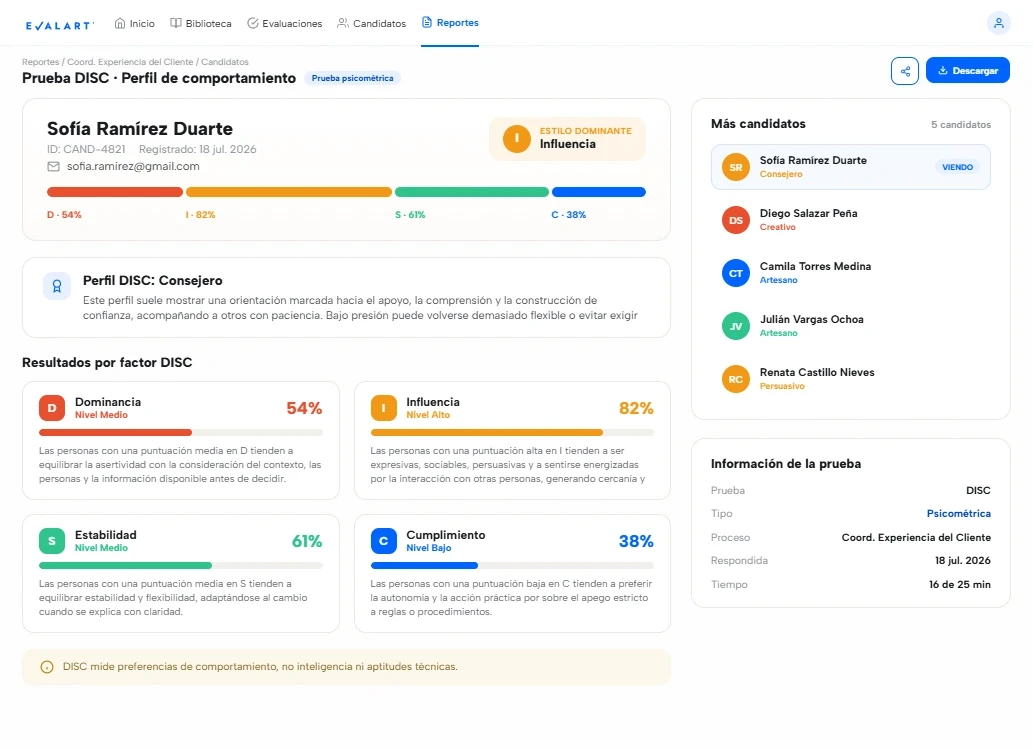
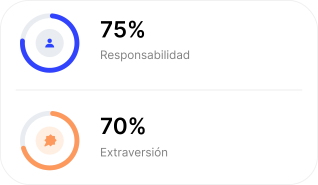
Pruebas psicométricas, técnicas y de aptitud
Combina las pruebas que tu vacante necesita, en un solo lugar.



Cómo funciona


Reseñas
Validado por empresas como la tuya
Más de 60 reseñas verificadas en G2, Capterra y GetApp.
0
0
Clientes en múltiples industrias
0+
0+
Candidatos evaluados
0.0%
0.0%
De tasa de finalización en nuestras pruebas
0
0
Países usan Evalart
Precios
Paga por candidato evaluado
Planes desde $32 USD por mes. Sin permanencia mínima.
Pruebas ilimitadas por candidato
Evalúa todo lo que necesites, sin costo adicional.
Créditos reembolsables
Si el candidato no inició la prueba, puedes reutilizar esos créditos.
Cambia cuando quieras
Cambia de plan o agrega créditos cuando lo necesites.
FAQs
Preguntas frecuentes sobre Evalart
Todo lo que necesitas saber antes de comenzar. Si tienes más preguntas no dudes en contactarnos.
¿Evalart tiene una prueba gratuita?
Sí, y no necesitas tarjeta de crédito. El plan gratuito te permite evaluar hasta 5 candidatos para conocer la plataforma antes de elegir un plan pago.
¿Cómo funciona el precio? ¿Pago por prueba o por candidato?
Pagas por candidato evaluado, no por cantidad de pruebas. Un candidato puede rendir todas las pruebas que necesites dentro de un mismo proceso y consume un solo crédito.
Puedes elegir suscripción mensual o una bolsa de créditos fijos, según lo que te convenga.
¿Qué pasa si un candidato no llega a rendir la prueba?
Si el candidato no inició ninguna prueba, recuperarás esos créditos. Nunca pagarás por invitaciones que no se usaron.
¿Qué tipos de pruebas incluye el catálogo?
Nuestro catálogo incluye más de 500 pruebas, entre programación (con ejecución real de código), psicometría (DISC, Big Five), aptitud e inteligencia, conocimientos técnicos y de industria (banca, TI, ventas), e idiomas. También puedes crear pruebas propias.
¿Cómo evita Evalart que un candidato haga trampa?
Evalart monitorea cada prueba en tiempo real. Cámara web, identidad y comportamiento sospechoso quedan registrados automáticamente, y el sistema marca los casos de riesgo sin descalificar a nadie por su cuenta: la decisión final siempre queda en manos del reclutador.